
Recently I have been taking part in activations for Parks On The Air or POTA with my local portable group and Lincoln Shortwave Club Members.
Taking part in POTA is extremely easy and can even be done from the comfort of your own shack.
What is POTA
Parks on the Air® (POTA) started in early 2017 when the ARRL’s National Parks on the Air special event ended. A group of volunteers wanted to continue the fun beyond the one-year event, and thus, POTA was born.
They provide an excellent getting started page here along with more on the history of POTA.
In the UK there are a number of different locations on the POTA system. Of course National Parks and Country Parks are there but there is also National Nature reserves, RSPB Reserves and also Areas of Outstanding National Beauty. To find the boundaries takes a bit of researching. One Helpful resource is something called MagicMap. This shows you the boundaries of certain areas which you can match up to the POTA Map. I have Also created a Google map to show the areas near me and once loaded up into Google Maps allows you to see your own GPS location with the overlay.
The first thing you need to do is get signed up over at pota.app. Once signed up there you get to see a current list of all the parks being activated right now. This is called the Spotting page.
Doing POTA
So there is two parts to POTA, Activators and Hunters.
Hunter
I’m first going to start off with Hunters. Being a hunter is simple, all you have to do is make contact with anyone currently activating a park. The best thing is that you can do this from anywhere, even from your own home. Making being a hunter even easier is that you don’t even need to submit your logs in order to claim that you’ve hunted the park. This is because only activators submit logs and if you are in their log and have an account with POTA with the callsign you used then it will automatically get added to your stats.
Activator
Now being an activator requires a bit of effort. The main thing being, you actually have to go to a park…. with your radio. So to find you closest park you can again go to the pota.app page and in the menu on the left click MAP.

Once you there make sure your aloud to set up your station and abiding by all your licence conditions with regards to public safety.
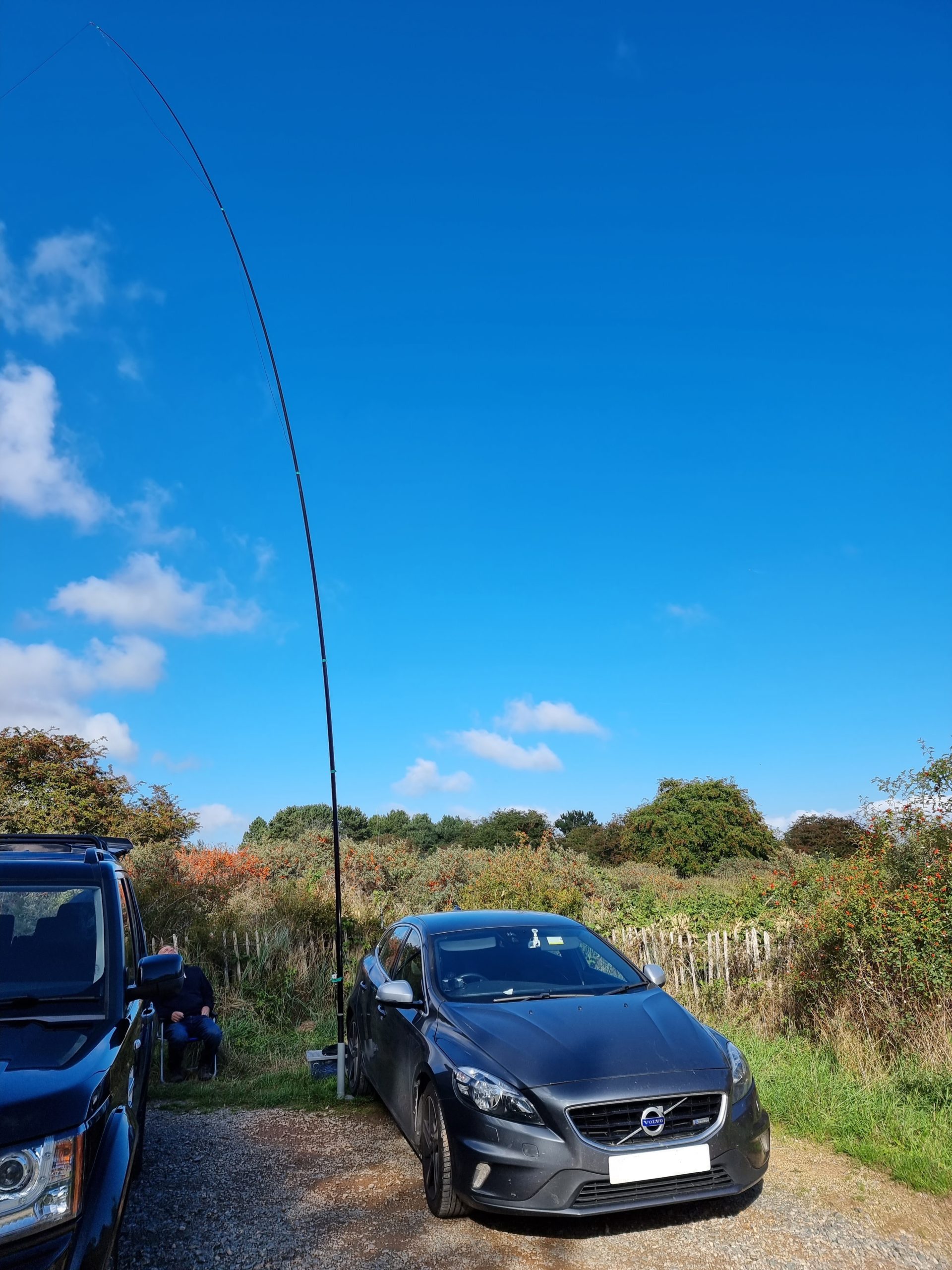

Here is my setup at a recent activation at Gibralter Point National Nature Reserve (G-0081).
Logging
I personally recommend N3FJP’s Amateur Contact Log. I have tried a number of different logging software and have found this to work the best for me. Yes it is windows software so if you don’t have a windows laptop to use then you will have to try some of the other offerings out there.
Required Fields
POTA has recently introduced the automatic log uploader where you can just submit you aidf file to the system and it is processed automatically. To make sure this works you need to have a number of additional adif fields in your log. This is to tell the system which park you at and that you are doing a POTA activation. They will also be need to record any park2parks that you may get.
The fields that you will need to add are SIG, SIG_INFO, MY_SIG & MY_SIG_INFO. ‘SIG’ Stands for ‘Special Interest Group’
- SIG – Set this to POTA if you contact someone else at a park. For your own reference you could also set it to SOTA for example if you worked someone activating that. It is not a requirement of the POTA Uploader.
- MY_SIG – Set to “POTA” – This makes a record in each log entry that you are activating a POTA site. I set this to be retained for each QSO so it is preset for each contact.
- SIG_INFO – If you have a Park to Park contact this is where you enter the other operators park number.
- MY_SIG_INFO – Set this to your park number EG. G-0081 . This is so when you upload your log it knows which park you were activating.
If you encounter any errors with your log then you have to request its deletion using the “request support” option on the My Log Uploads page, then re-upload the corrected one.
There has been a new field introduced in the adif standard for POTA, ‘POTA_REF’. This is not currently used by the up-loader but you can configure it in N3FJP in another ‘Other’ field if you wish for other logging software that may use it.
ADIF Fields
To add these in Amateur Contact Log (ACLog) yo need to go to the custom fields menu.

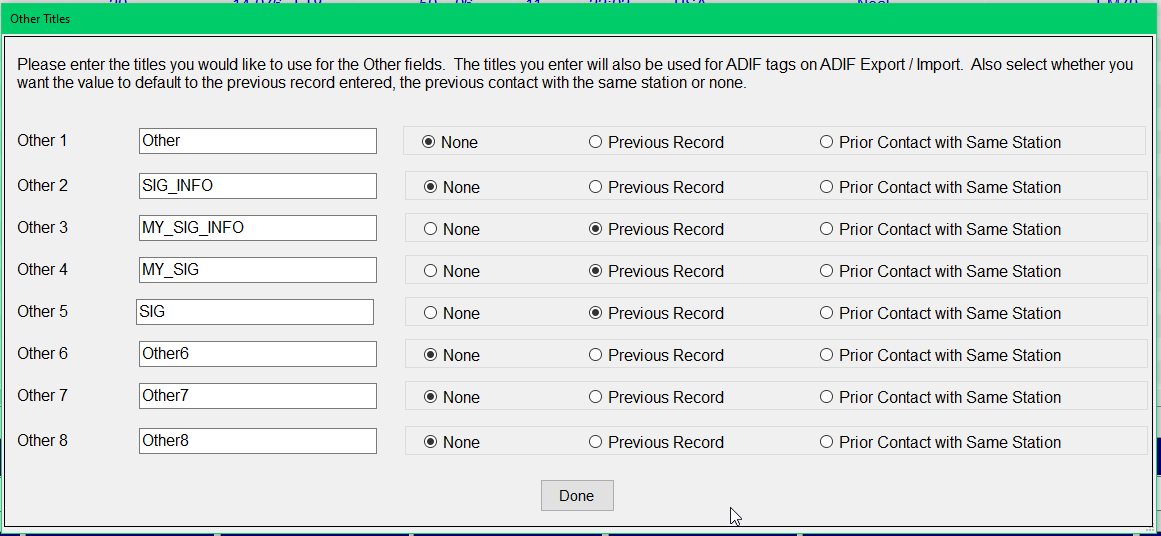
In the boxes labelled Other 2 -5 change the title to the needed additional fields listed above. Also change the setting for MY_SIG_INFO, MY_SIG & SIG to “Previous Record” this will make it so it will remember what this was set to based on your last contact so you don’t have to fill it in every time. Leave SIG_INFO set to “None” as this needs to remain blank unless your current contact is a Park2Park.
Once you’ve done that you need to add the field boxes to the main logging screen.
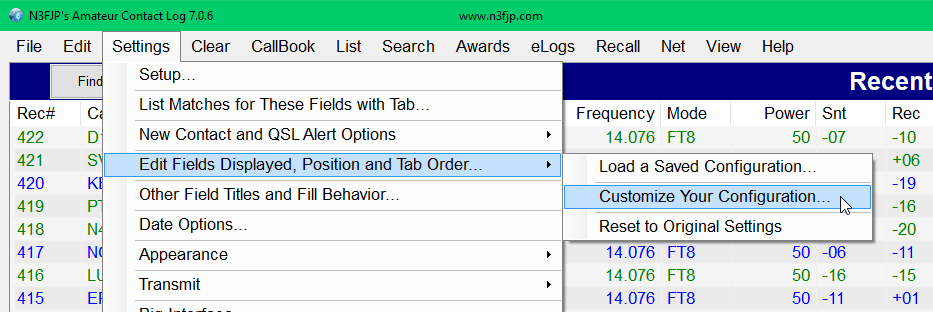

You will need to enable the new “Other” fields which you just created by clicking on each one in the list and then enabling them by checking the Visible on main form Check box.

You can change the TAB Order now or come back and do it after the next step which may be easier. The Tab order is the order of boxes the curser will move to each time you press tab when logging, EG. once you’ve entered a callsign, with the order shown above, the curser will move the the received signal report box etc….
Logging window layout
You now need to position the new fields on the main logging window. From the Edit Fields Displayed window you have open. Click on “Enable Repositioning of All Fields on Main Form”

Here is my Layout as an example.

Finally, if you haven’t already you can change the tab order to match the layout you have made. If you look at the images above you will se that my tab order matches the order of the boxes on the layout.
you can download my Layout file here as an example. Anyone can use this but you will need to change the names as mentioned above for it to display correctly.
So with that you should be all set. Uploading your logs is easy. Just go to My Log Upload in the menu and select your .adif file which you can export from ACLog in the File Menu.
What’s Next
There is much more to POTA and this is just an introduction to get you started. As mentioned at the top it is highly recommended that you read the rules, Guides and FAQ here to ensure you understand all you need to know.
30/08/2024 at 10:17 am
Hi,
I have only started on my POTA journey. I would like to use my local park
Combe valley Countryside Park
East Sussex.
UK
The park is on the South East coast between Hastings and Bexhill on sea.
Grid ref 50″51’06 North 0″30’56 East.
I have contacted April Jones M7APR who is responsible for allocating parks in the UK
I have sent her two emails with no reply.
Maybe she is not the rep any more? I was wondering if you could help me?
Sorry for the inconvenience.
73
Richard G0ILN
17/11/2024 at 5:03 pm
Hi Richard
I have been trying to get Lochaber Geopark a POTA Reference without success.
https://lochabergeopark.org.uk/
We don’t seem to have wrkd on the Fists Ladder for a few months.
73
Dave
GM4NFI
13/06/2025 at 2:03 pm
How to make it easier for POTA/SOTA hunters to get activators into log? On the S50CLX DXCluster server I have implemented the integration of spots that are not part of the classical telnet DXCluster network. To receive POTA/SOTA/WWFF/BOTA spots a connection via telnet protocol is required from your logging or with a standalone telnet client program. You have the possibility to select the reception of specific spots:
– for receiving only POTA spots, command: ACC/SPOTS INFO -POTA-
– for receiving only SOTA spots, command: ACC/SPOTS INFO -SOTA-
– for receiving only WWFF spots, command: ACC/SPOTS INFO -WWFF-
– for receiving only BOTA spots, command: ACC/SPOTS INFO -BOTA-
– for receiving POTA and SOTA spots execute the command: ACC/SPOTS INFO -POTA- OR INFO -SOTA-
– for receiving only BOTA, POTA, SOTA and WWFF spots execute the command: ACC/SPOTS INFO -BOTA OR INFO -POTA- OR INFO -SOTA- OR INFO -WWFF-
S50CLX CLUSTER DEFAULT (all spots receiving) command should be executed: CLEAR/SPOTS ALL
In cases where we do not want to receive BOTA, POTA, SOTA, WWFF spots e.g. in a contests, use the command as the first filter before all others. REJ/SPOTS 1 INFO -BOTA- OR INFO -POTA- OR INFO -SOTA- OR INFO -WWFF-
A connection via telnet protocol to s50clx.infrax.si port 41112 which is a completely free service is required to receive POTA/SOTA/WWFF/BOTA spots. Full ANG instructions at https://s50e.si/pota-sota-dxcluster/
Spread the news, GL Dan S50U